Apple Secrets
You already generated two of the six required secrets when you created your GitHub account.
Now it's time to collect the other four. Remember to save the secrets in your Secrets Reference File
You need to save your information digitally, so you can copy and paste. The information is created in one place and used in another. Refer to Configure Secrets for how the Secrets are used. In addition to the 6 Secrets, other important information to keep handy (like usernames and passwords) is listed below. Be sure to keep this file secure.
Created / used at developer.apple.com
- Email address (this is your username)
- password
- Four items used as
SecretsTEAMIDFASTLANE_ISSUER_IDFASTLANE_KEY_IDFASTLANE_KEY
Created / used at github.com
- Email address
- password
- username
- If your username is
my-namethen:- Your GitHub address (URL) will be:
https://github.com/my-name - Your (optional but recommended) GitHub organization address will be :
https://github.com/my-name-org - Your Trio repository address will be:
https://github.com/my-name-org/Trio
- Your GitHub address (URL) will be:
- One item used as a Secret
- GitHub Personal Access Token (
GH_PAT)
- GitHub Personal Access Token (
Create yourself
- a password - make one up and save it (
MATCH_PASSWORD)
Collect the Four Apple Secrets
Section Summary (click to open/close)
You will be saving 4 Secrets from your Apple Account in this step.
- Sign in to the Apple Developer portal page.
- If you need to accept a new agreement (happens at least twice a year), be sure to do so now
- Scroll down to the Agreements section of your developer portal
- The first Apple
Secretis your Team ID.- Click on Membership Details on your developer portal
- Copy the Team ID from this section. Record this as your
TEAMID.
- The final 3 Apple
Secretscome from the creation of the "FastLane API Key".- Go to the App Store Connect interface, click the "Integrations" tab, and create a new key with "Admin" access. Give it the name: "
FastLane API Key".
- Go to the App Store Connect interface, click the "Integrations" tab, and create a new key with "Admin" access. Give it the name: "
- Record three more secrets
- Record the issuer id; this will be used for
FASTLANE_ISSUER_ID. - Record the key id; this will be used for
FASTLANE_KEY_ID. - Download the
API Keyitself, and open it in a text editor. The contents of this file will be used forFASTLANE_KEY. Copy the full text, including the "-----BEGIN PRIVATE KEY-----" and "-----END PRIVATE KEY-----" lines.
- Record the issuer id; this will be used for
This section provides detailed instructions for the four Secrets associated with your Apple Developer ID.
| Name | Description |
|---|---|
TEAMID |
This 10-character identifier is associated with your Apple Developer ID and never changes |
FASTLANE_ISSUER_ID |
The issuer ID is associated with your Apple Developer ID and never changes |
FASTLANE_KEY_ID |
Key ID provided when you create an API Key in App Store Connect; it is associated with the FASTLANE_KEY |
FASTLANE_KEY |
Copy the full key from the text file you downloaded when generating the API Key - Filename has FASTLANE_KEY_ID value embedded in it.Include everything in the file from -----BEGIN PRIVATE KEY-----and ending in -----END PRIVATE KEY----- |
New Apple Developer Account
If you have an Apple Developer Account, skip ahead to Find TEAMID.
If not, you need to purchase one ($99 annual fee). It may take a few days for the account to be enabled.
- TrioDocs has an Apple Developer Program page that explains in detail how to sign up for an account
- This link takes you straight to Apple Developer account to sign up
Find TEAMID
Sign in to your Apple Developer account at this link: Apple Developer portal page.
If you need graphics for this part - use LoopDocs for reference. The secrets are all the same for all OS-AID apps.
- Click
Accountin the top menu bar - If you need to accept a new agreement (at least twice a year), be sure to do so now
- Click the
Membership Detailsicon - Next to the
Team IDfield, is a 10-character ID number.
Record this for use as TEAMID in your Secrets file. You will also need it when you Create App Group.
- Stop a moment and double-check
-
If you get this wrong, you will have errors at the very end, which require you to delete some items and repeat some steps on this page
Do not "type" what you think you see
Copy and paste the
Team IDfrom the webpage.TEAMIDmust be 10 characters- Avoid typing an
8when it should be aB
Generate API Key
If you need graphics for this part - use LoopDocs for reference. The secrets are all the same for all OS-AID apps.
This step is used to create and save the final 3 Secrets you need from your Apple Developer account.
Paid Apple Developer Account is Required
To generate the API Key, you must have a paid Apple Developer account.
Click this link to open in a new tab: App Store Connect/Access/Integrations/API
- Click the
Integrationstab
If this is your first time here, you will see:
-
"Permission is required to access the App Store Connect API. You can request access on behalf of your organization."
-
Click on
Request Accessand follow directions until access is granted
The numbered steps below correspond to the actions you take in the subsequent windows:
-
Click on the
Generate API Keybutton or the blue + sign to open theGenerate API Keydialog box -
Enter the name of the key as "
FastLane API Key" -
Choose
Adminin the access dropdown menu -
Confirm the name and that "
Admin" is selected and then click on the "Generate" button
Copy API Key Secrets
The Integrations screen appears again with content similar to the graphic below; the key information is blanked out for security.
Review the graphic and then follow the directions below to save more parameters you will need to configure Secrets.
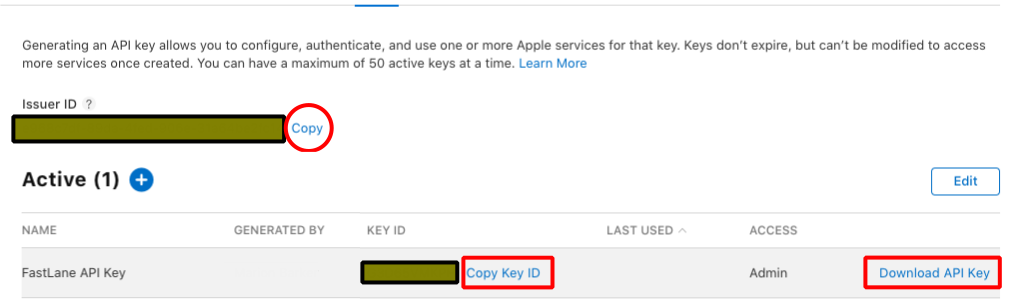
- A button labeled Copy is always adjacent to the
Issuer IDabove the word Active (this is the same for all keys that you generate with this Apple Developer ID)- Tap on the
Copybutton - this copies theIssuer IDinto your paste buffer - In the file where you are saving information, paste this with the indication that it is for
FASTLANE_ISSUER_ID
- Tap on the
- Hover to the right of the
Key IDand theCopy Key IDbutton shows up- Tap on the
Copy Key IDbutton - this copies theKey IDinto your paste buffer - In the file where you are saving information, paste this with the indication that it is for
FASTLANE_KEY_ID
- Tap on the
- Click on the
Download API Keybutton - you will be warned you can only download this once. -
Find your
AuthKeydownload in your downloads folder. The name of the file will be "AuthKey_KeyID.p8" whereKeyIDmatches yourFASTLANE_KEY_IDThe next task is to rename the file so you can open it. Highlight the filename and choose rename, then add ".txt" after ".p8". In other words, modify
AuthKey_AAAAAAAAAA.p8toAuthKey_AAAAAAAAAA.p8.txtand click onUse .txtwhen questioned. -
Double-click to open the
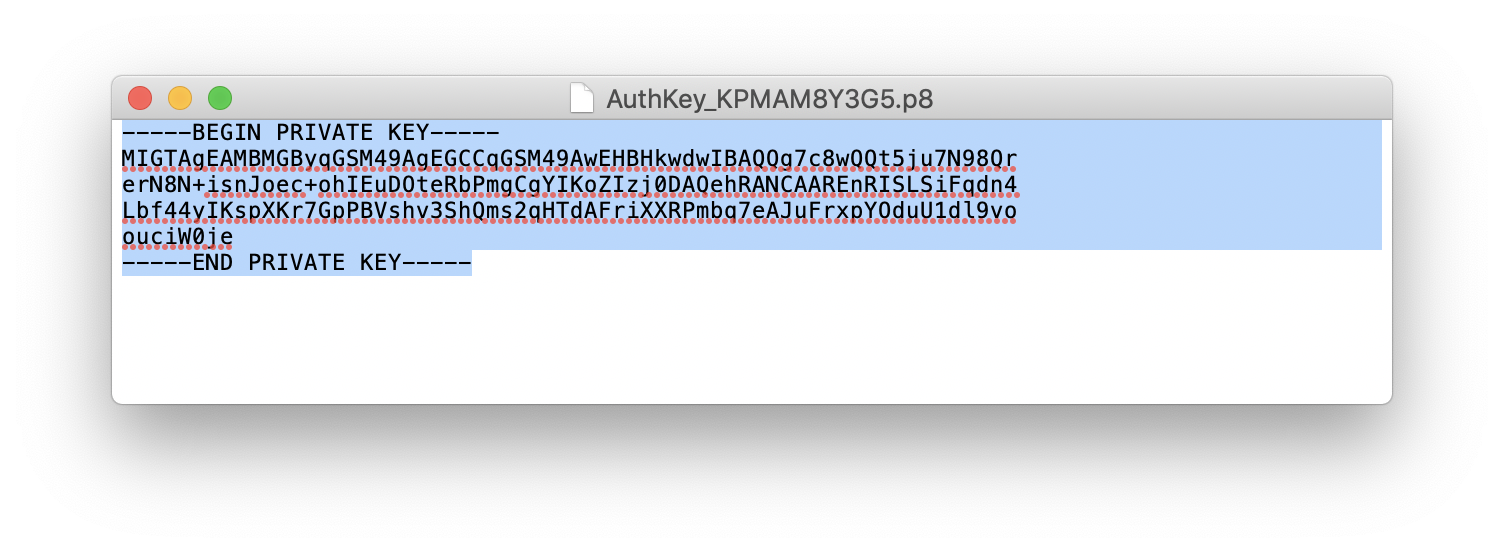
AuthKey_AAAAAAAAAA.p8.txtfile. It will look similar to the screenshot below. You need to highlight ALL OF THE CONTENTS of that file and copy it and then paste it into your Secrets Reference file as theFASTLANE_KEY.- Click inside that file
- Highlight all the text, including the "
-----BEGIN PRIVATE KEY-----" and "-----END PRIVATE KEY-----" lines and then - Copy all of the text to the clipboard (Cf. screenshot below).
- On a Mac, use Cmd+A, then Cmd+C to copy all the contents
- On a PC, use Ctrl+A , then Ctrl+C to copy all the contents
- In the file where you are saving information, paste this with the indication that it is for
FASTLANE_KEY
Organize your Key File
Pro Tip: Use the same folder as your Secrets Reference File
It's a good idea to keep all your important files in one place. You probably set up a folder for your Secrets Reference File. Use the same folder for your API key - be sure to label the file so you know what the key is. For example, change the name from KPMAM8y3G5.p8 to API_KEY_KPMAM8y3G5.p8.
Do Not Confuse Your Keys
API Key vs APN Key
If you use Remote Commands with Nightscout or Trio, you may notice the Application Programming Interface (API) key has the same type of format as the Apple Push Notification (APN) key. The keys for both of these purposes are p8 keys, but they should not be confused with each other.
The Secrets for building with GitHub use the API Key.
The config vars for Nightscout, Trio and Loop use the APN Key.
Done with Apple Secrets
In summary, from this section, you have found or generated the following and saved copies for later use
TEAMIDFASTLANE_ISSUER_IDFASTLANE_KEY_IDFASTLANE_KEY
Time for a Break?
This is a good place to pause if you need to. Just note where you are on the page so you can return later.
Navigation: ← Back to Create a GitHub Account | Next: Fork and Prepare →