Create a GitHub Account
If you already have a GitHub Account, skip ahead to Create GitHub Personal Access Token.
New GitHub Account
If you do not already have a GitHub account, you need to create one. Be sure to record the email, password, and username for your GitHub account.
Decide on a couple of usernames that you will be happy with - this will get embedded into your GitHub URL. Your first choice might not be available, so be prepared with several candidates. Your personal URL will be: https://github.com/username.
- Click on this link to sign up for a free account: GitHub account signup
- You will need to enter the email you want associated with your GitHub account
- You will be asked to enter a password
- You will be asked to enter a username
- You will be asked if you want to receive email, ok to say
Nfor no - you still get important account information with that email - Solve the puzzle to prove you're a person
- Check the associated email to get the code and enter the code into github.com to confirm your account
- You should get the Welcome to GitHub screen
- Indicate it is "Just me" on your team and Continue
- Don't check anything on the next screen, just tap
Continue - Select the
Freeoption by selectingContinue for Free
The free level comes with plenty of storage and compute time to build the Trio app.
Create GitHub Personal Access Token
Section Summary (click to open/close)
Log into your GitHub account to create a personal access token, which you will save as GH_PAT.
Click to create a new personal access token:
- Enter a name for your token, use "
FastLane Access Token" - Change the Expiration selection to
No expiration - Select the
workflowpermission scope(repowill be automatically selected)- This step enables automatic building
- Click "Generate token"
- Copy the token and record it. It will be used below as
GH_PAT
To skip the detailed instructions, click on Make up a Password.
Default Settings
These instructions are a prerequisite for automatic update and automatic build.
You must be logged into your GitHub account before starting this step. If you are continuing, you are already logged in.
- You will be creating a new GitHub
Personal Access Tokenand giving it the name "FastLane Access Token" -
Open this link: https://github.com/settings/tokens/new
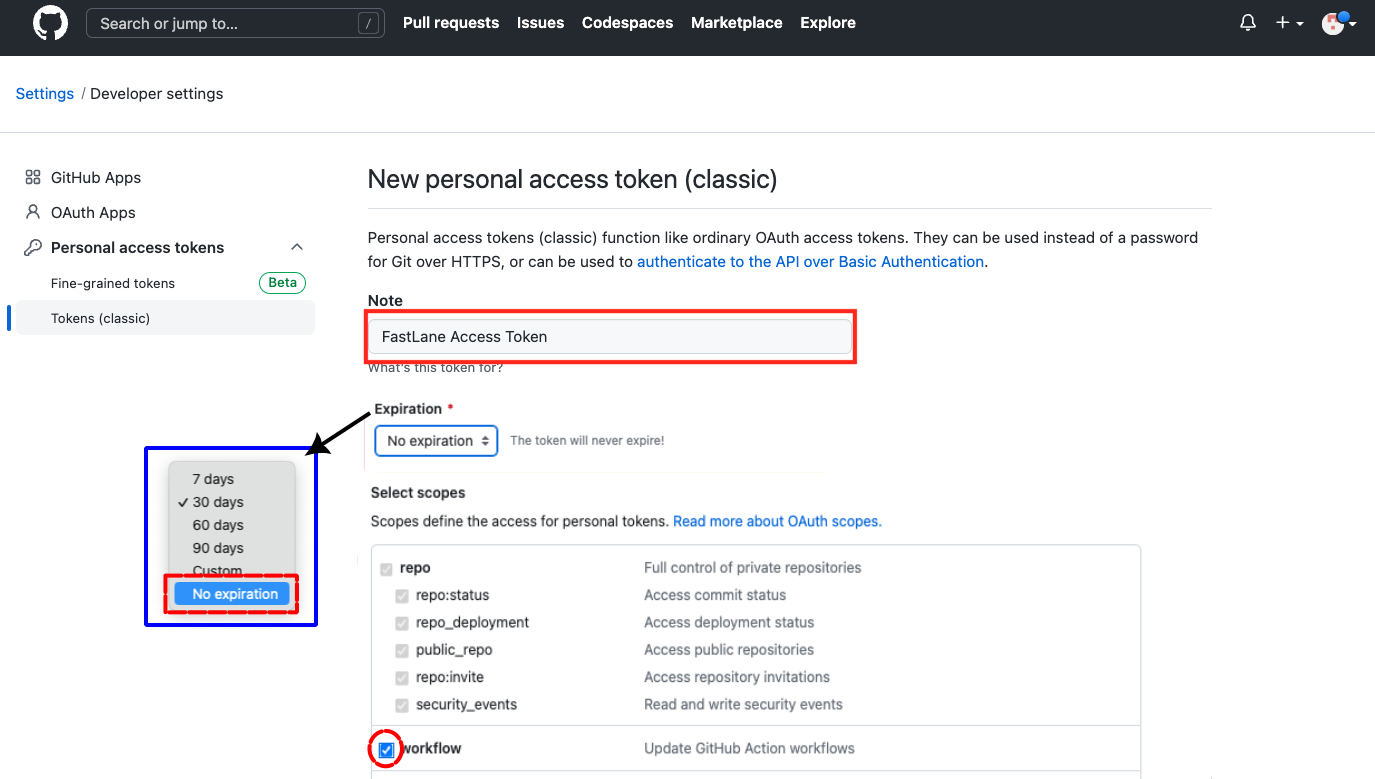
- Referring to the graphic
- Note that
Tokens (classic)is highlighted - Most people use the
classic Token- If you are a developer who needs to use fine-grained
tokens, that is fine
- If you are a developer who needs to use fine-grained
- Edit the note box to be
FastLane Access Token
- Note that
- The default Expiration time is 30 days - but you should select
No expiration(use the dropdown menu to select)- GitHub will show a yellow warning when you do this
- It is ok to ignore the warning
- Add a check beside the
workflowpermission scope - A check will automatically appear in the
reposcope as well - this is normal - Scroll all the way to the bottom and click
Generate token(it's a long way, ignore all other settings, do not check anything else)
What does
repoandworkflowdo?repo: enables manual build actionsworkflow: enablesrepoand automatic build actions
- Referring to the graphic
-
A new screen appears showing your access token
- Copy the
tokenand record it - once you leave this screen you can't see it again - You will use this for
GH_PATwhen you set up your Secrets - You can regenerate a Personal Access Token for
GH_PATif you lose it, but then you have to update that in theSecretsfor your organization or in all repositories using GitHub Build if you don't use an organization
- Copy the
Create a Free GitHub Organization
This step is optional but it can save you a lot of time and is strongly recommended.
Prerequisite: You need a personal GitHub account. If you do not already have a personal GitHub account, click on New GitHub Account.
In the instructions below, use your GitHub username instead of my-name.
- Follow the directions below to create a new GitHub organization account with a username of
my-name-org(of course naming is up to you)- GitHub provides documentation at this link, New GitHub Organization, or you can follow the bullets below
- Log into
my-nameand click on your icon (at upper right) and choose Settings - On the left side-bar, click on Organizations
- In the new view, click on New Organization and choose Free for the plan by clicking on
Create a free organization. - In the
Set up your organizationscreen:- Enter
my-name-orginto theOrganization namebox - Enter the same email you use for
my-nameaccount - Select this organization belongs to
My personal account - Check the box to accept the terms of service
- Tap on the next button
- Enter
- You now see a Welcome screen
- Unless you plan to collaborate with others, just tap
Complete setup - You can always add others at a later time
- Unless you plan to collaborate with others, just tap
- Confirm access by entering the same password as you use for
my-name
GH_PAT comes from personal my-name account
The GitHub personal access token used as one of the 6 Secrets is associated with your personal account (my-name); so if you already have one, you just keep using it.
Your personal GitHub account is still needed. The free organization points to your personal account as a member. Please do not delete your personal GitHub account after creating an organization. If you do that - you will no longer have access to your organization.
Make up a Password
If you have not already made up a password, do it now and record it as MATCH_PASSWORD. Note that if you build more than one app, you use the same MATCH_PASSWORD for all the apps. Every app needs to have the same 6 Secrets.
What is this Password used for?
The MATCH_PASSWORD is a special password called a passphrase that is used to encrypt and decrypt your certificates from Apple so they can be used when building with GitHub; it helps keeps your certificates secret and safe.
A passphrase is a little different from a regular password. A password is what you usually use to log in to a website or game. A passphrase is a secret code that helps protect important files by adding an extra layer of security when files are encrypted.
Passphrase Suggestions
To make a passphrase that is hard to guess and keeps your certificates safe:
- Use at least 15 characters (20 is even better) and you can include spaces
- Mix in big letters, small letters, numbers, and symbols like $ or #
- Don’t use words or numbers that people might guess, like your name or birthday
If you already created a MATCH_PASSWORD that does not meet the criteria listed above, no worries, you are protecting an Apple developer certificate - not the family fortune. That information is provided for new builders who want guidance.
Navigation: ← Back to Introduction to Secrets | Next: Collect Apple Secrets →