Insulin Pump
This section allows you to choose your insulin pump. Most options are self-explanatory. For more information on compatible insulin pumps, please see the following link
Step 1: Add Pump
The first step in setting up your insulin pump on Trio is to tap the "Add Pump" button in the Devices Menu
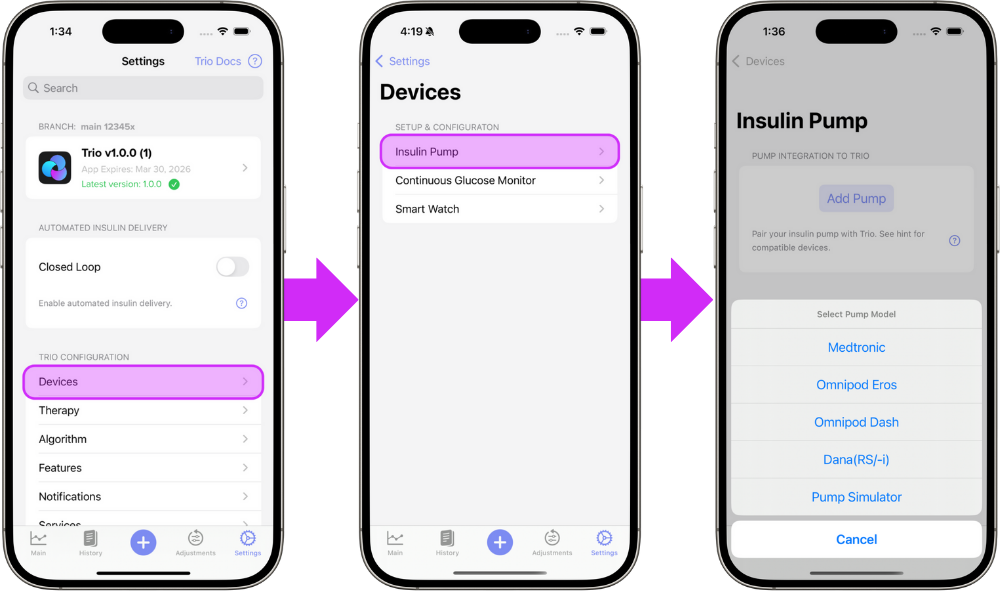
Step 2: Select Your Pump
Select your pump from the in-app menu and from the options below for step-by-step instructions. The links below will guide you through the connection instructions for your specific pump.
All Omnipod Types
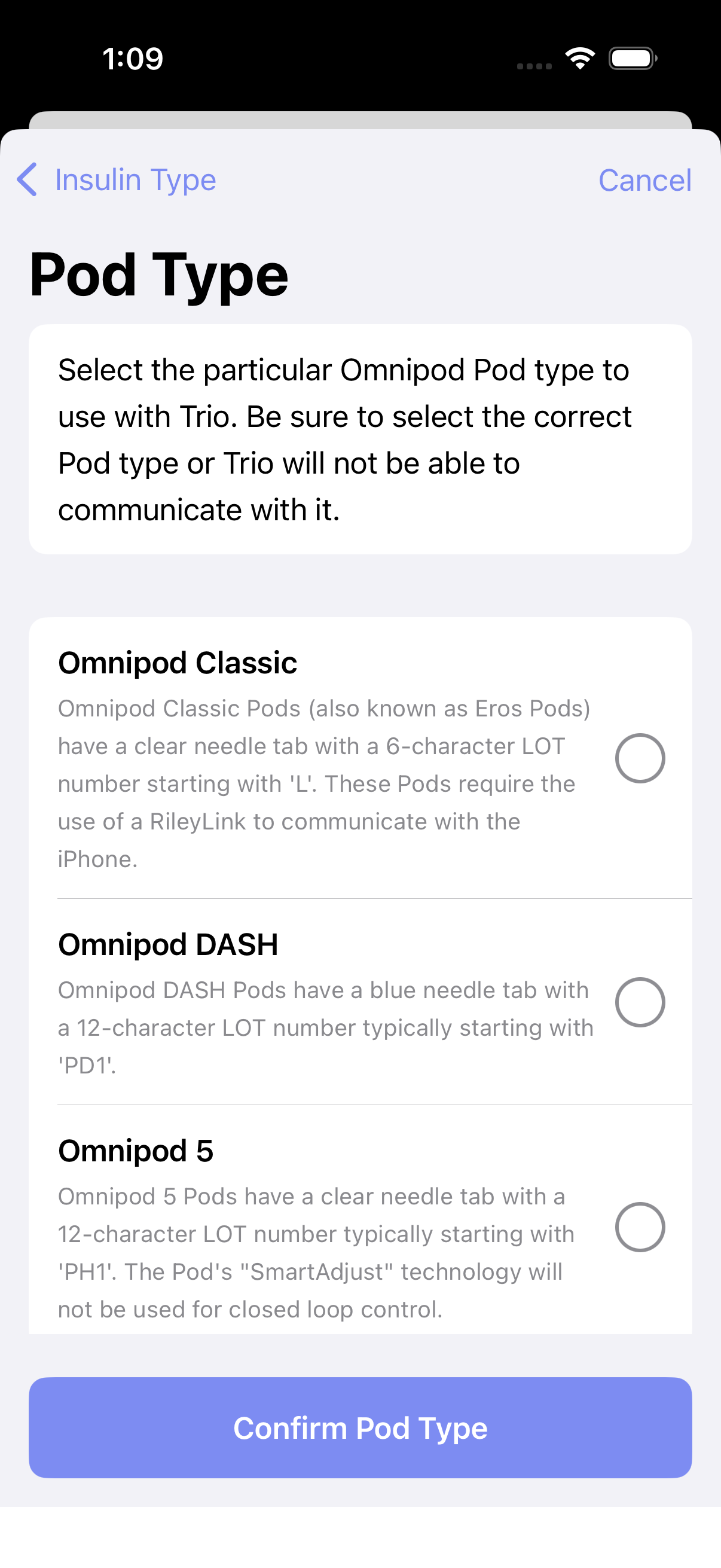
Step 3 Select which Omnipod type you will use with Trio
Omnipod Eros
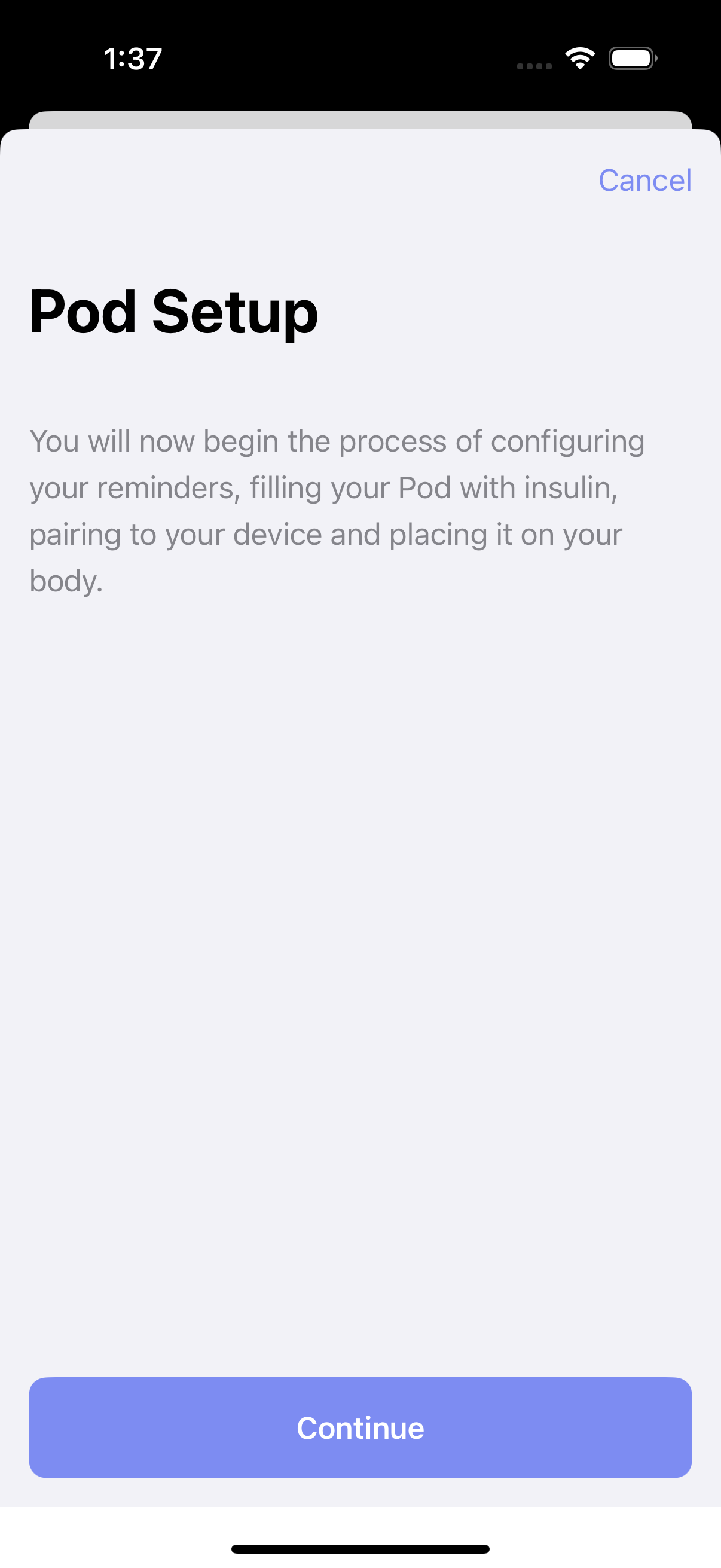
Step 4 Begin the process of configuring your Eros pod by tapping the blue "Continue" button at the bottom
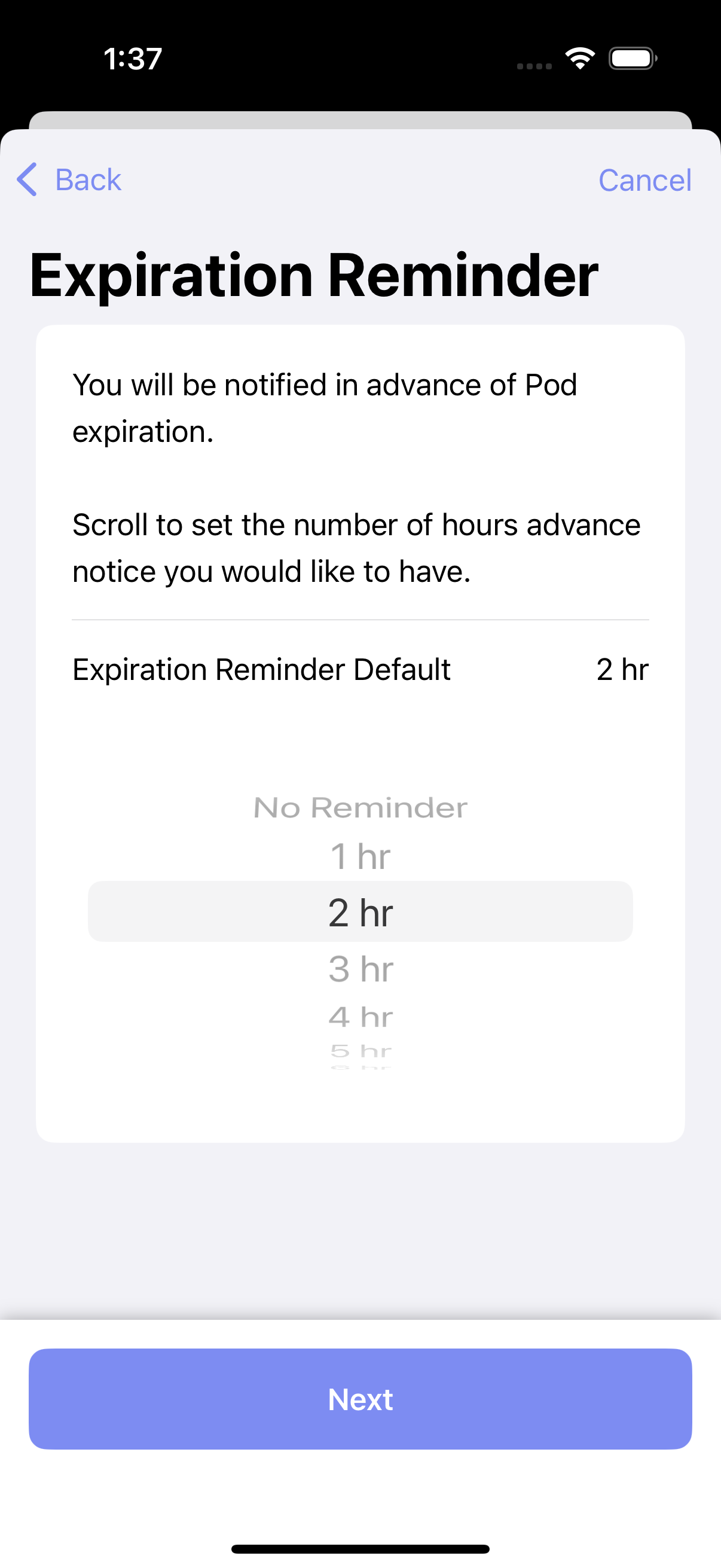
Step 5 Choose the expiration reminder that you prefer and tap "Next"
Step 6 Choose the low reservoir reminder that you prefer and tap "Next"
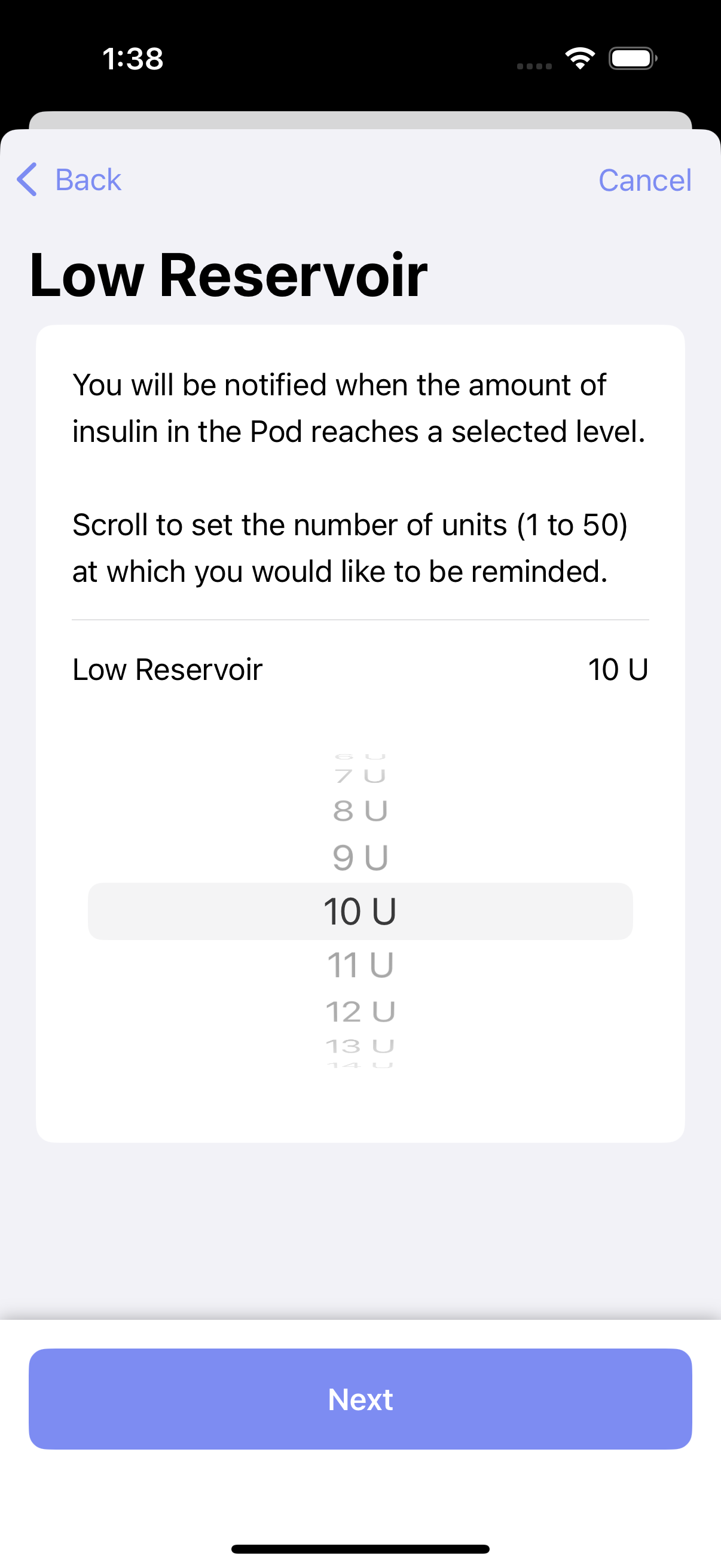
Step 7 Choose your insulin type and tap "Continue"
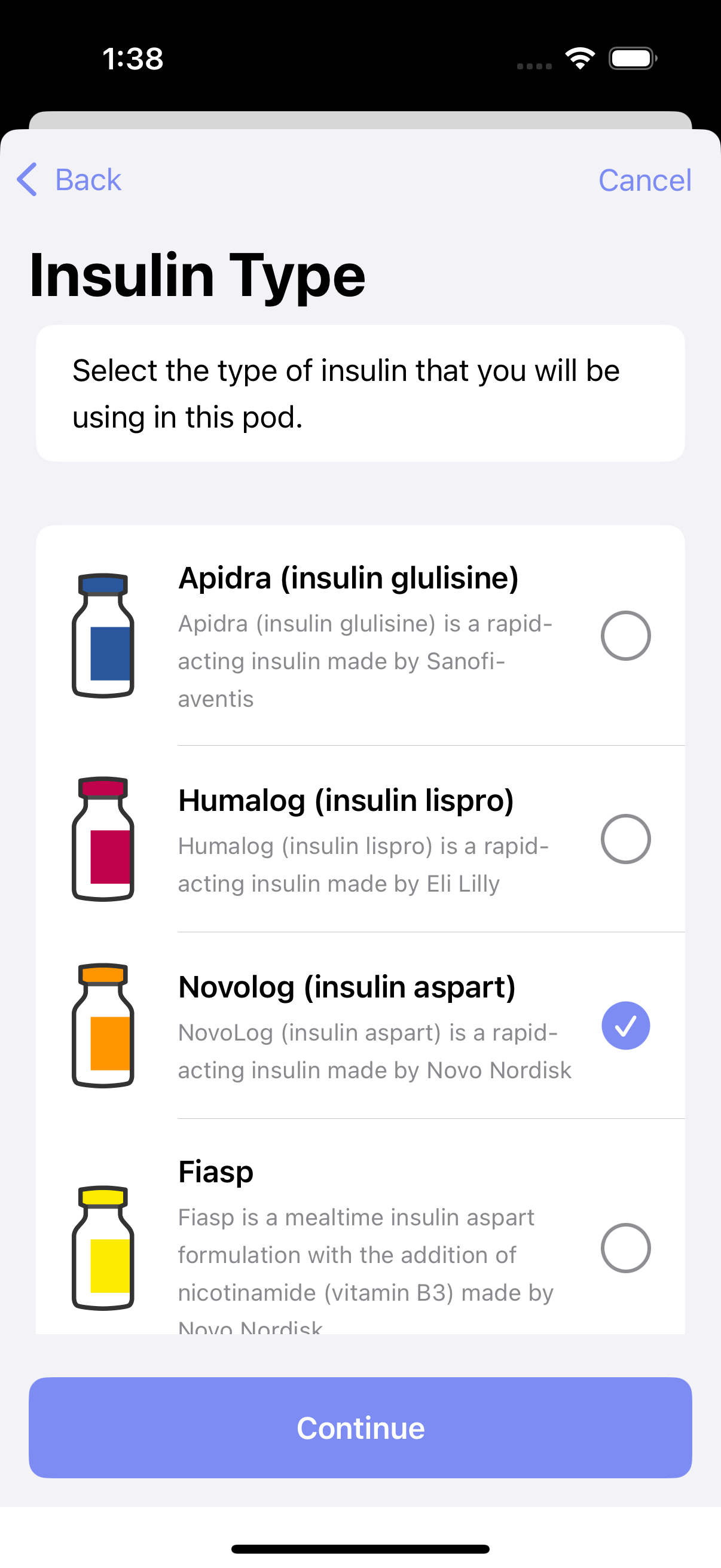
Step 8 Connect your RileyLink, OrangeLink, or EmaLink and tap "Continue"
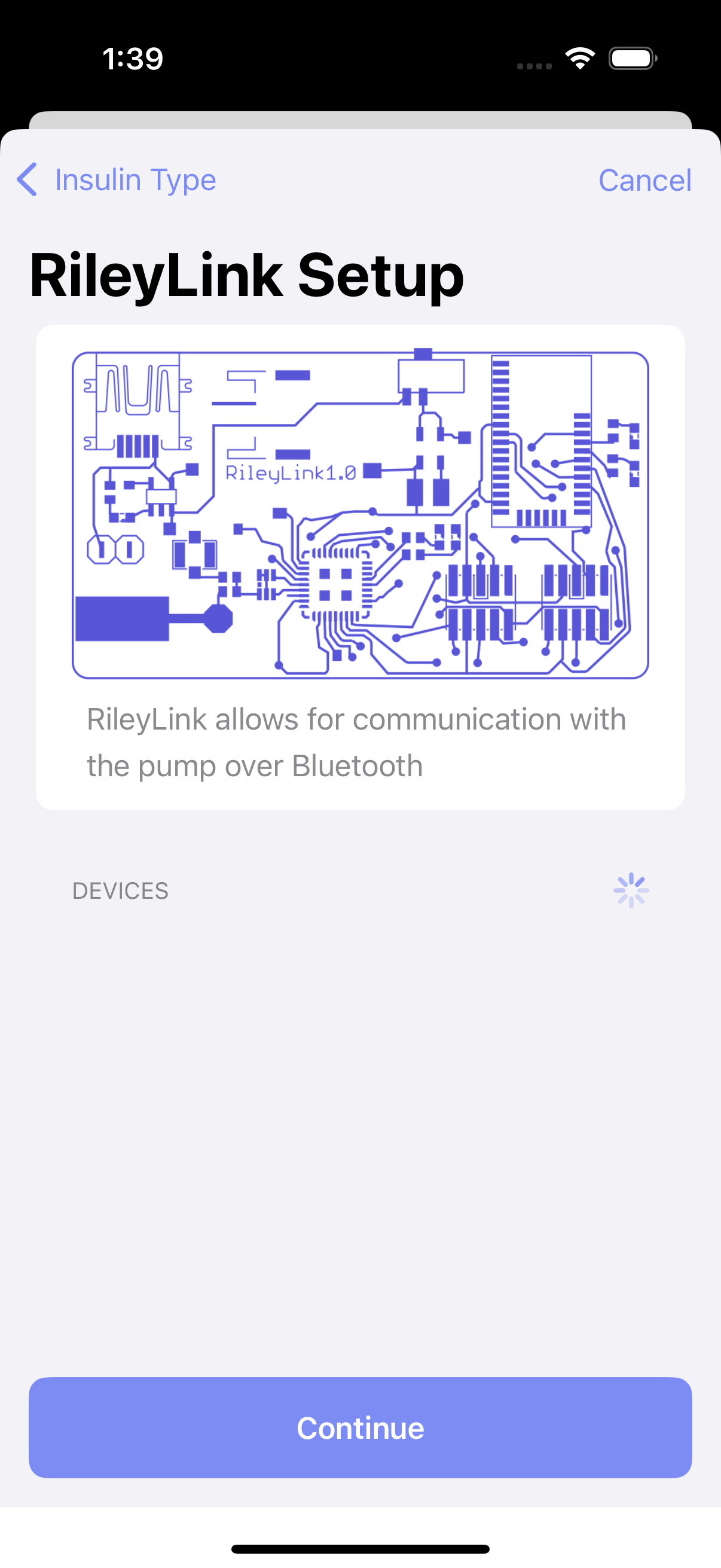
Step 8 Continue to Connect CGM OR return to New User Setup
Omnipod Dash
Step 4 Begin the process of configuring your Dash pod by tapping the blue "Continue" button at the bottom
Step 5 Choose the expiration reminder that you prefer and tap "Next"
Step 6 Choose the low reservoir reminder that you prefer and tap "Next"
Step 7 Choose your insulin type and tap "Continue"
Step 8 Continue to Connect CGM OR return to New User Setup
Omnipod 5
Step 4 Begin the process of configuring your Omnipod 5 pod by selecting Omnipod 5 and tap the purple "Continue" button
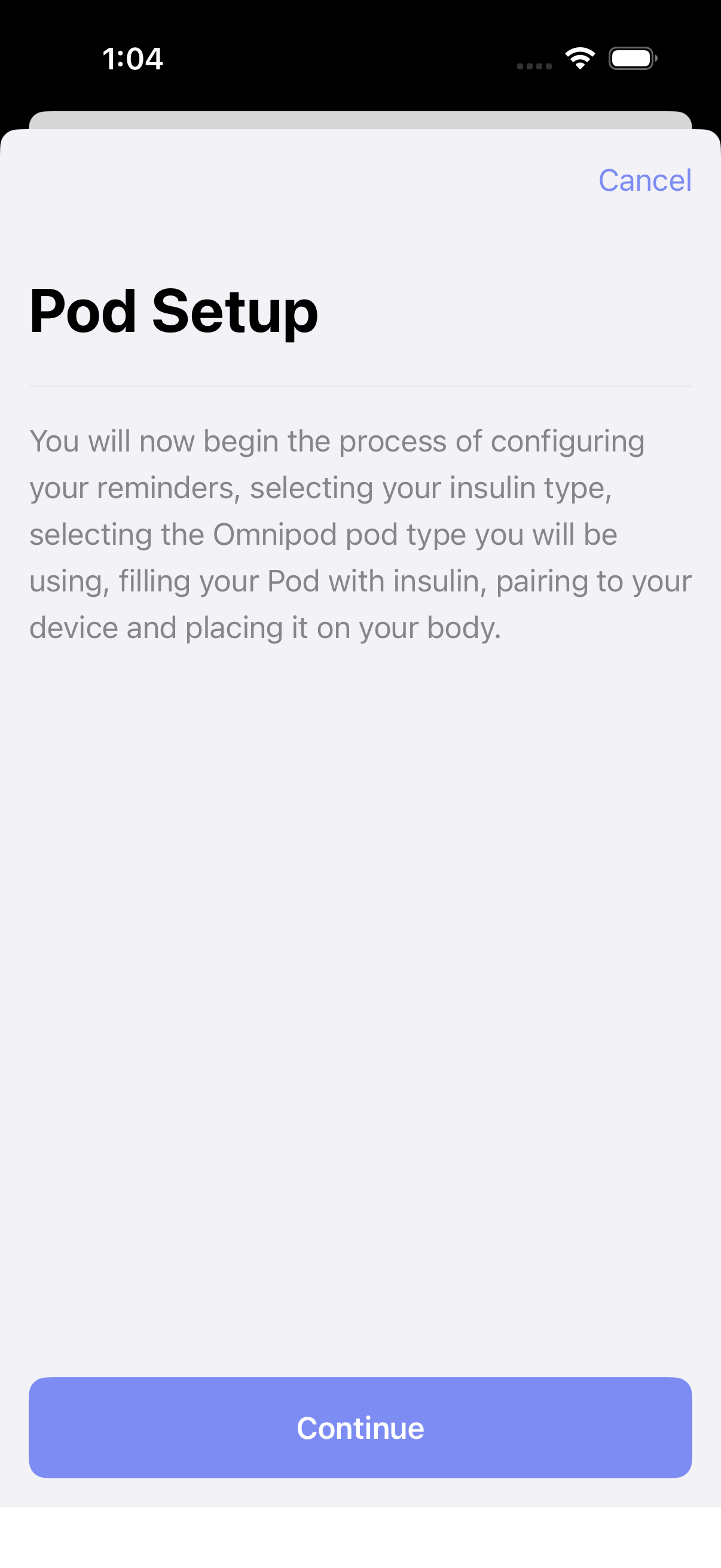
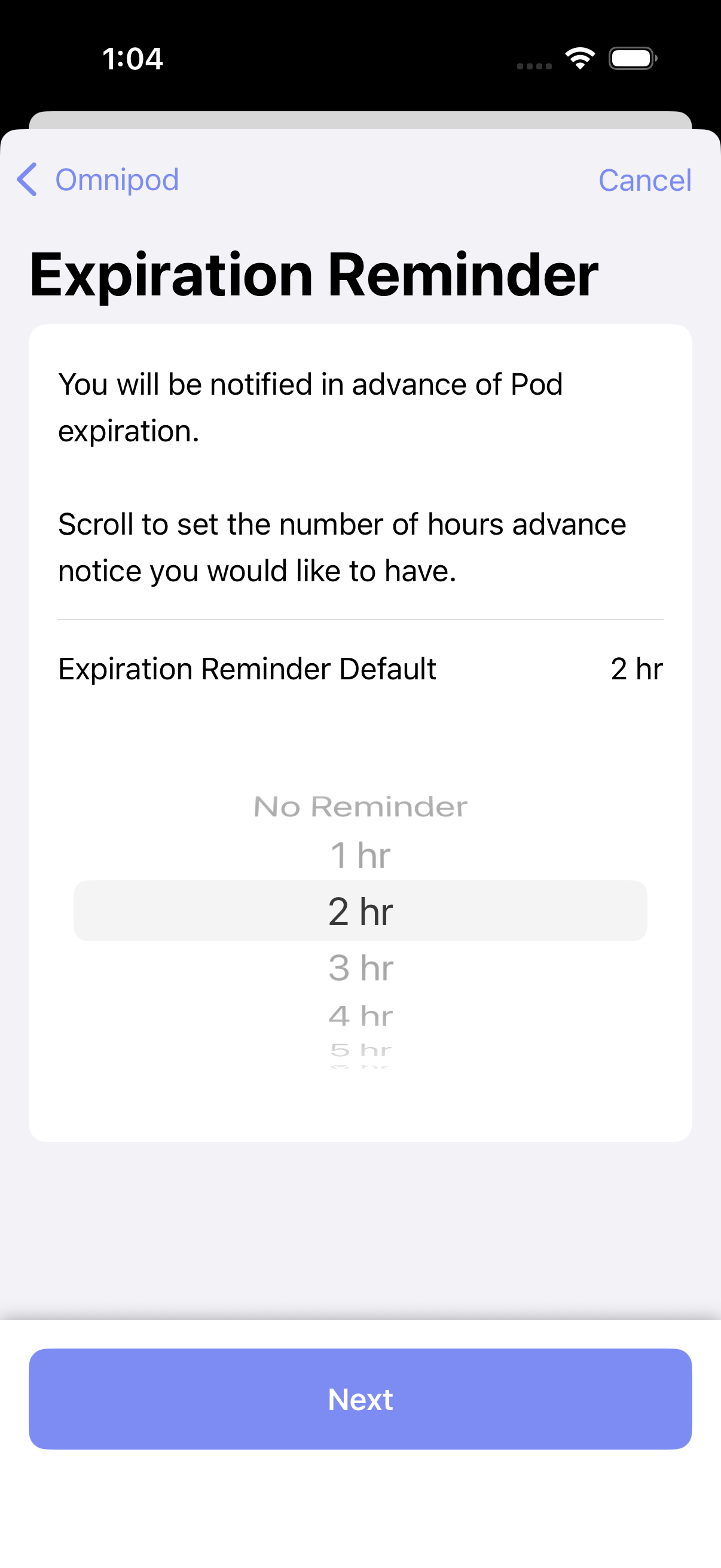
Step 5 Choose the expiration reminder that you prefer and tap "Next"
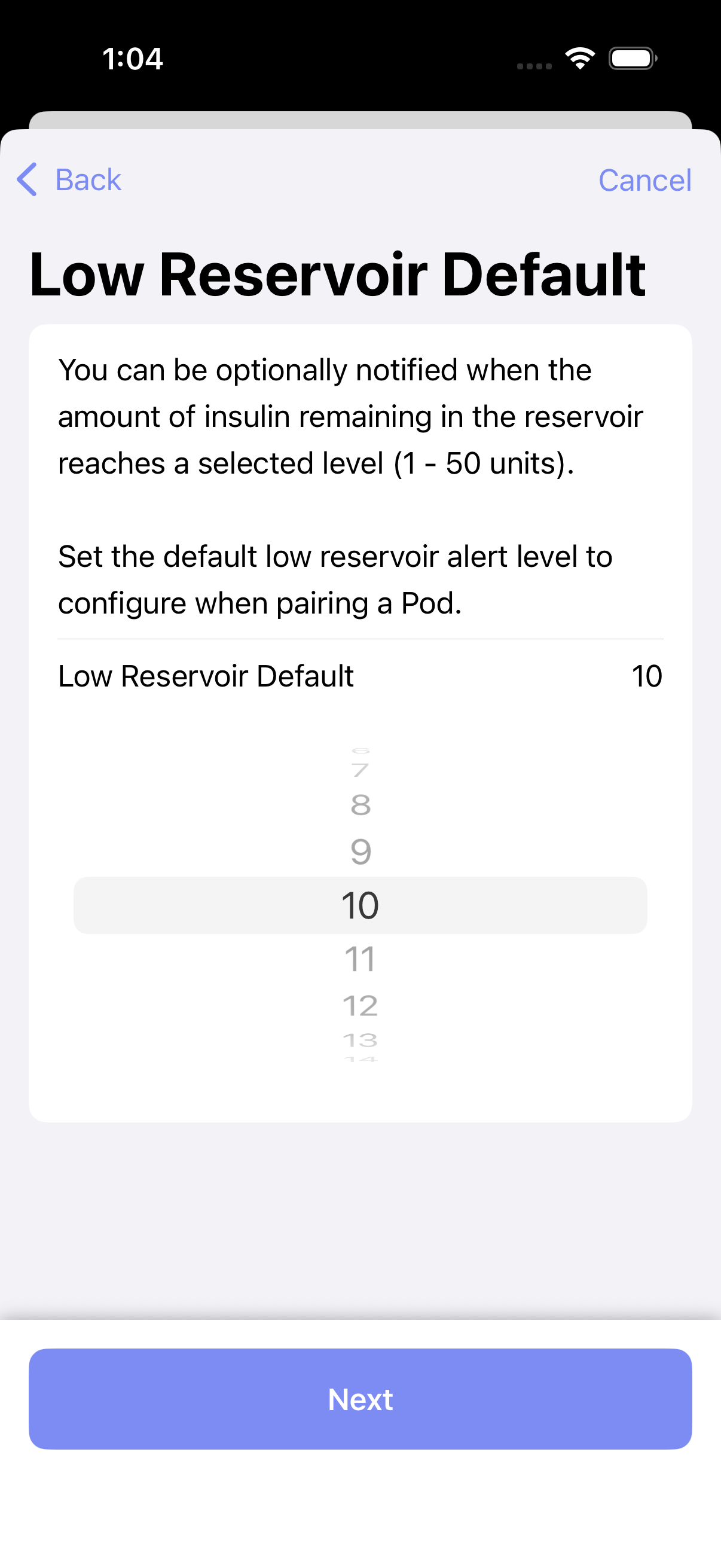
Step 6 Choose the low reservoir reminder that you prefer and tap "Next"
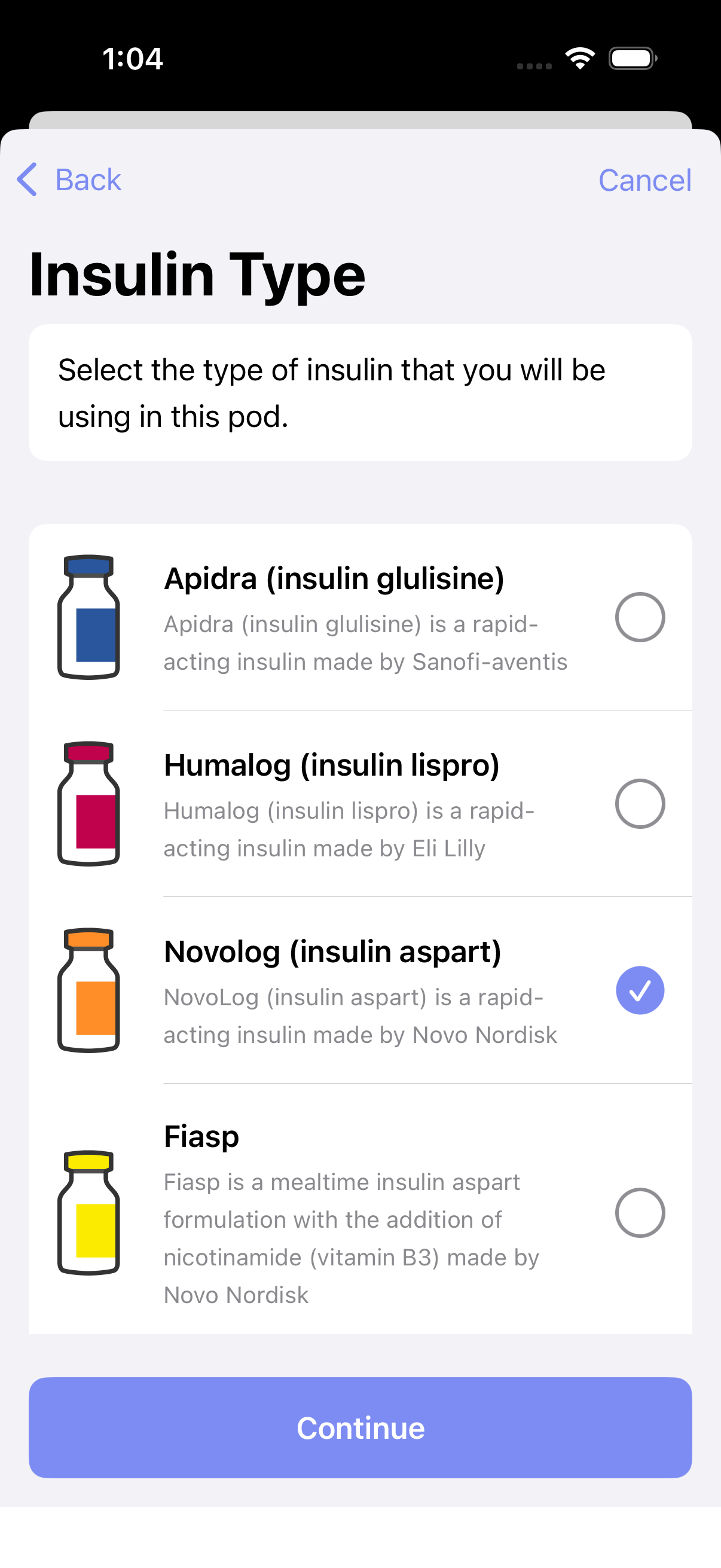
Step 7 Choose your insulin type and tap "Continue"
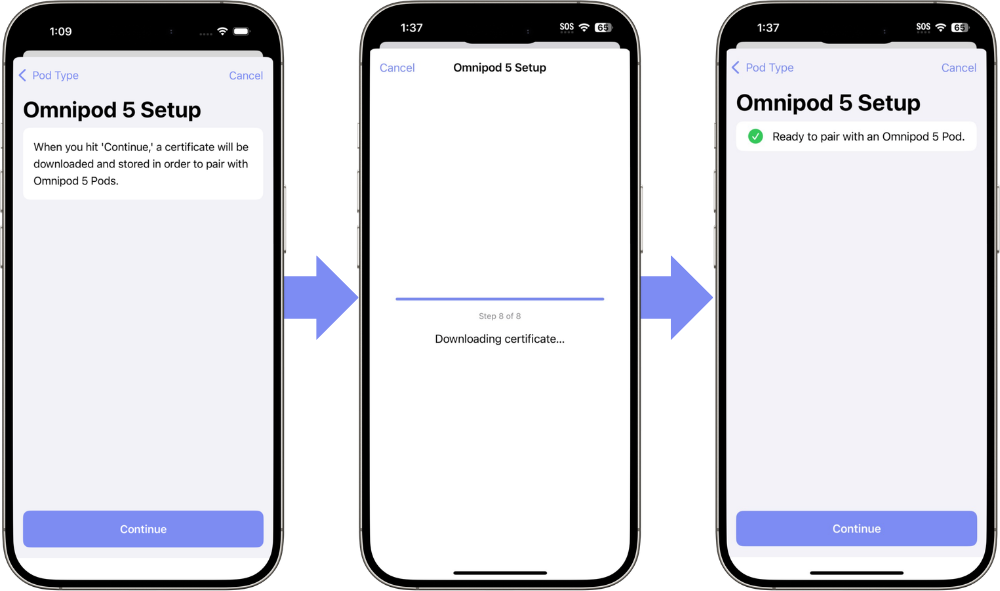
Step 8 Omnipod 5 requires a certificate to be pulled from a database online. This step requires internet access, but only for the very first Omnipod 5 pod. All future pods will not need this step or internet connection.
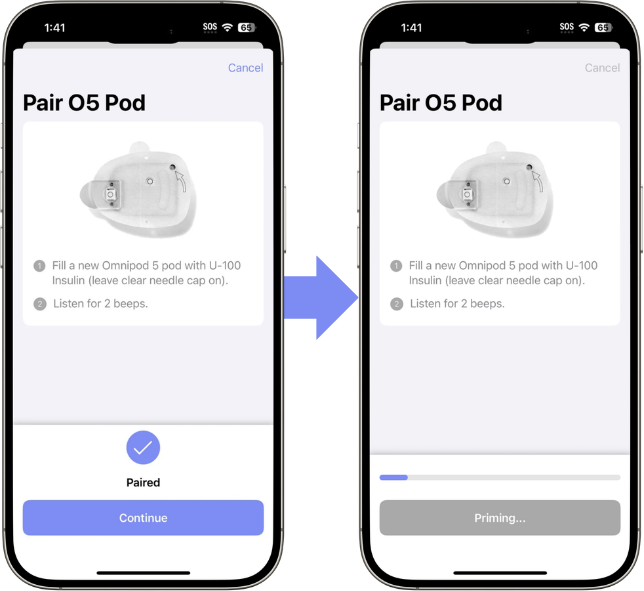
Step 9 Follow the on-screen instructions to pair your Omnipod 5 pod
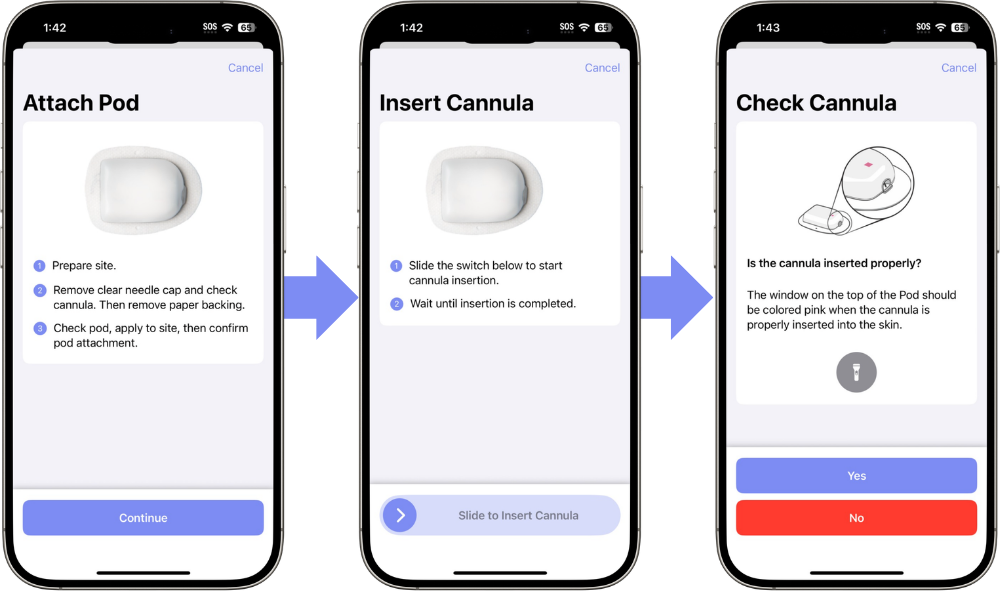
Step 10 Proceed through the steps to insert the cannula
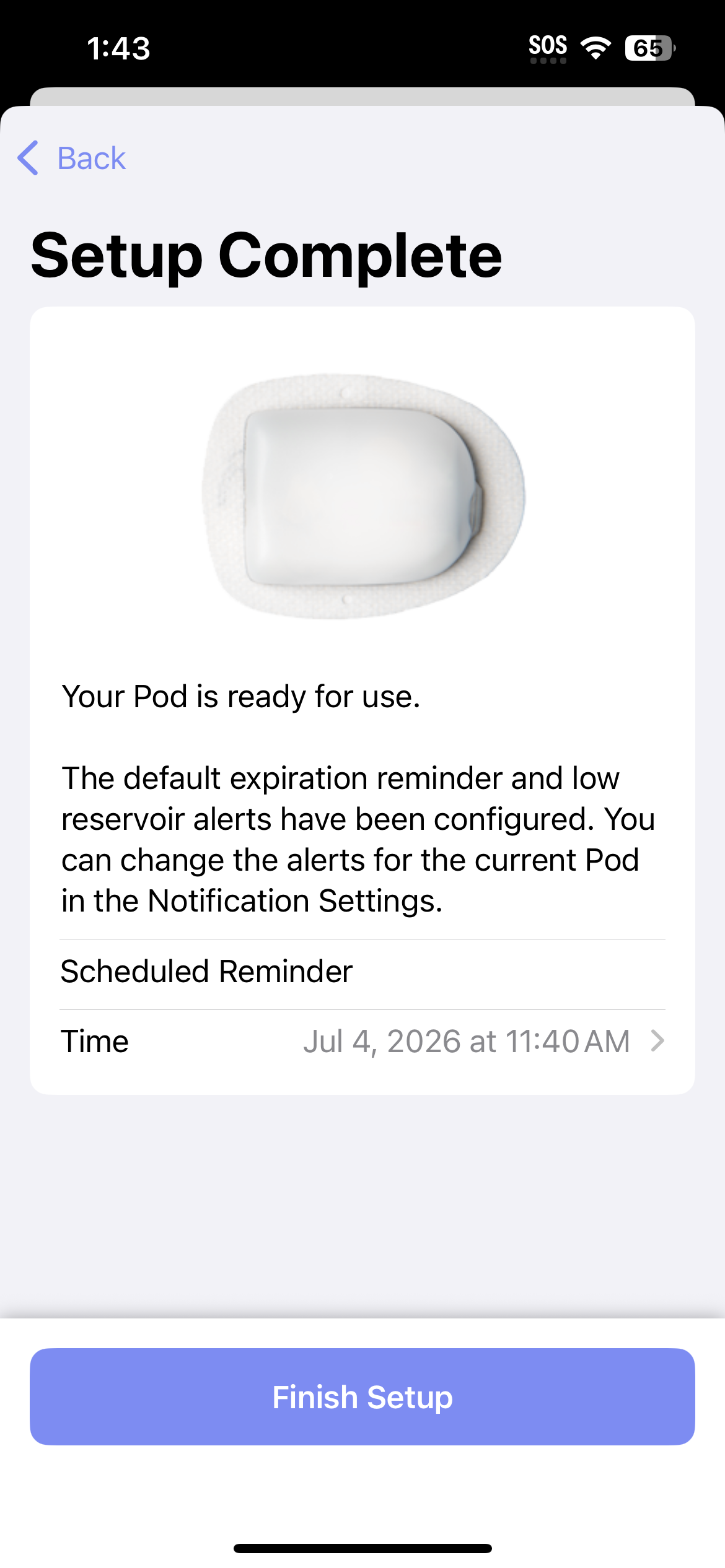
Step 11 Setup complete!
Step 12 Continue to Connect CGM OR return to New User Setup
Dana(RS/-i)
Step 3 Select your Dana pump model from the list and tap "Continue"
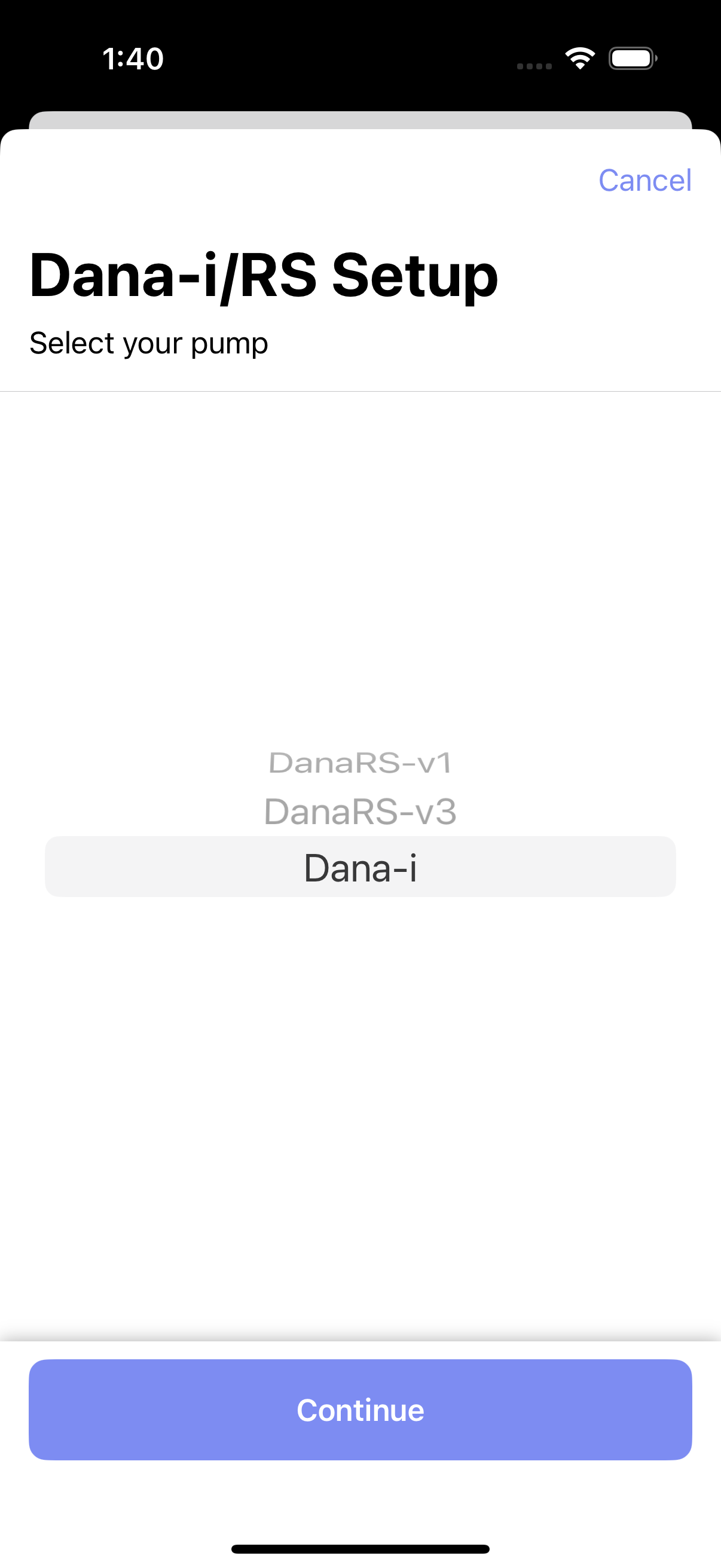
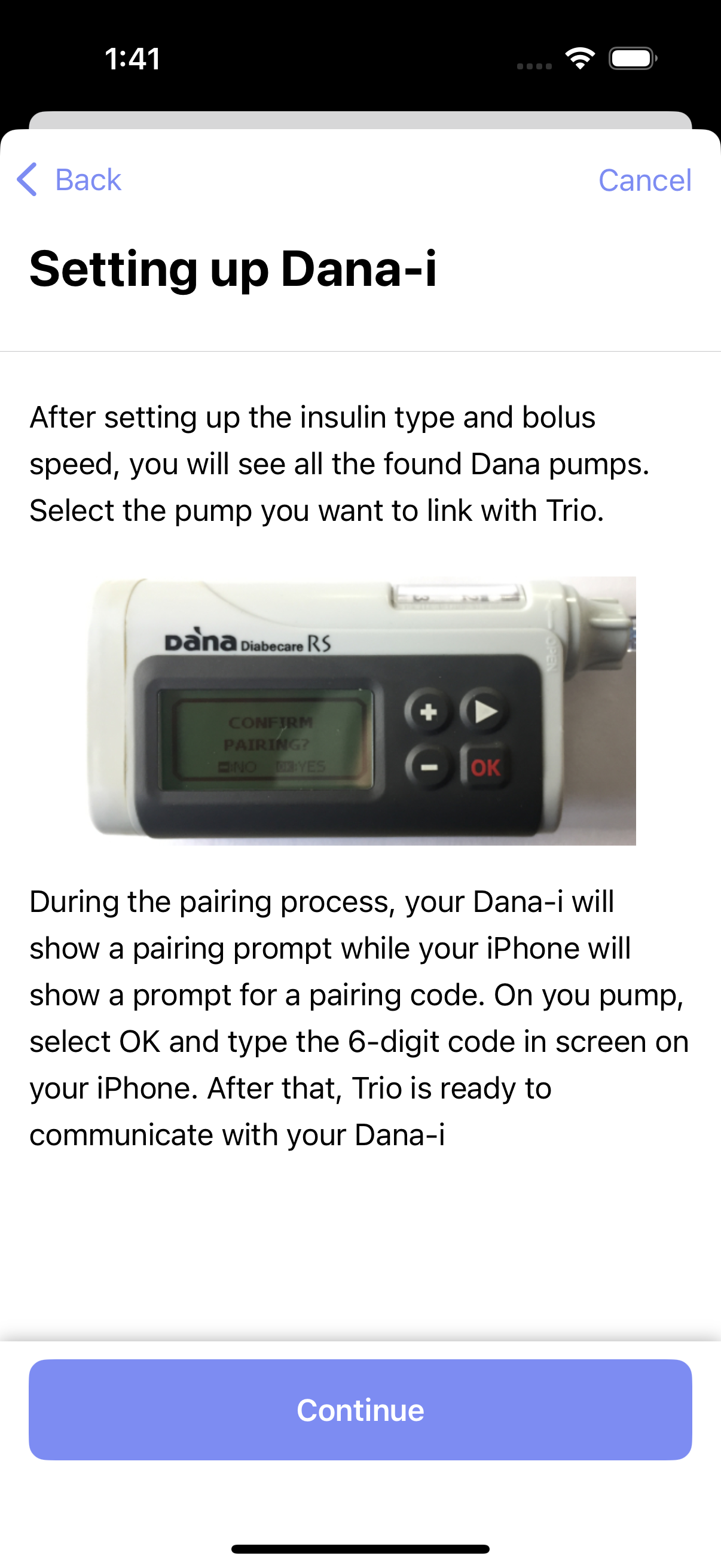
Step 4 Read the in-app information and tap "Continue" when ready to proceed
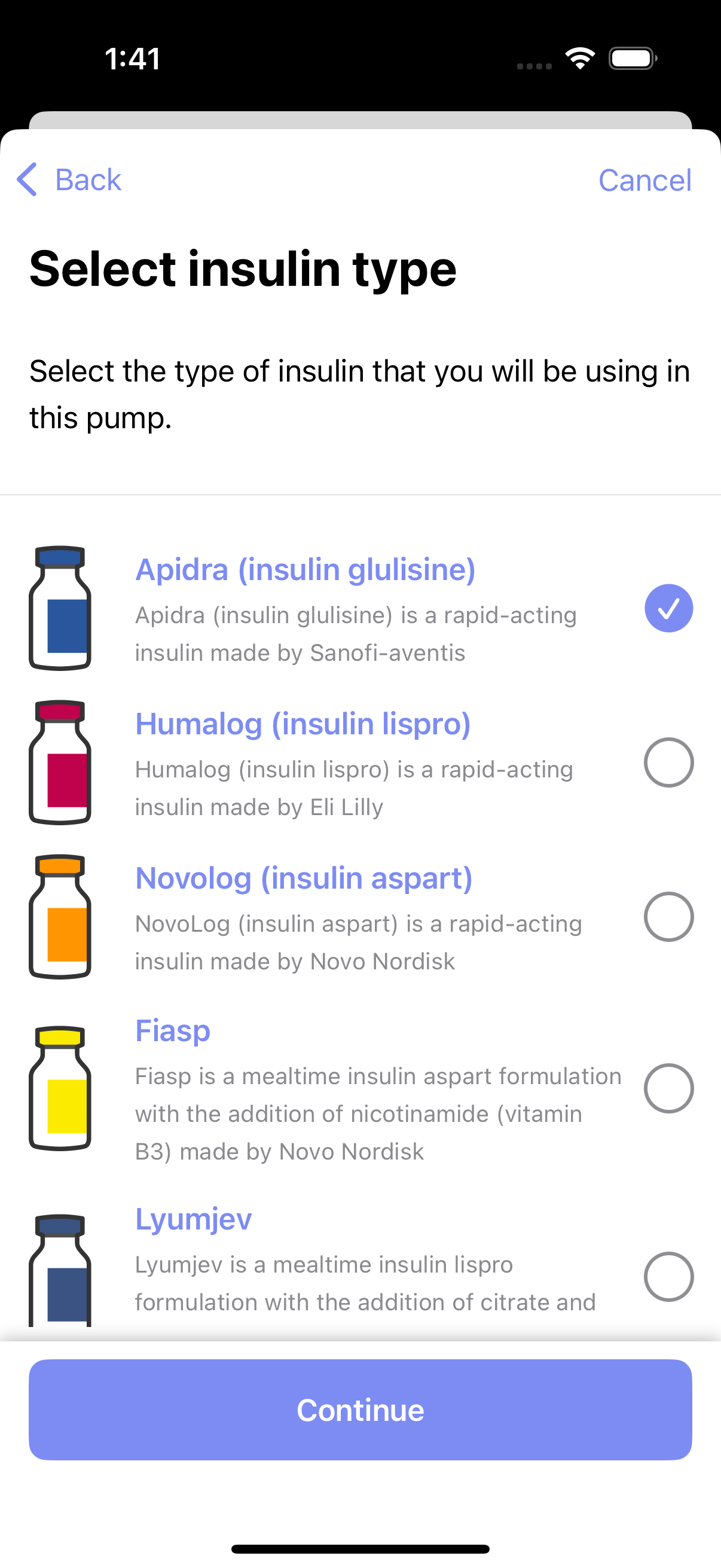
Step 5 Choose your insulin type and tap "Continue"
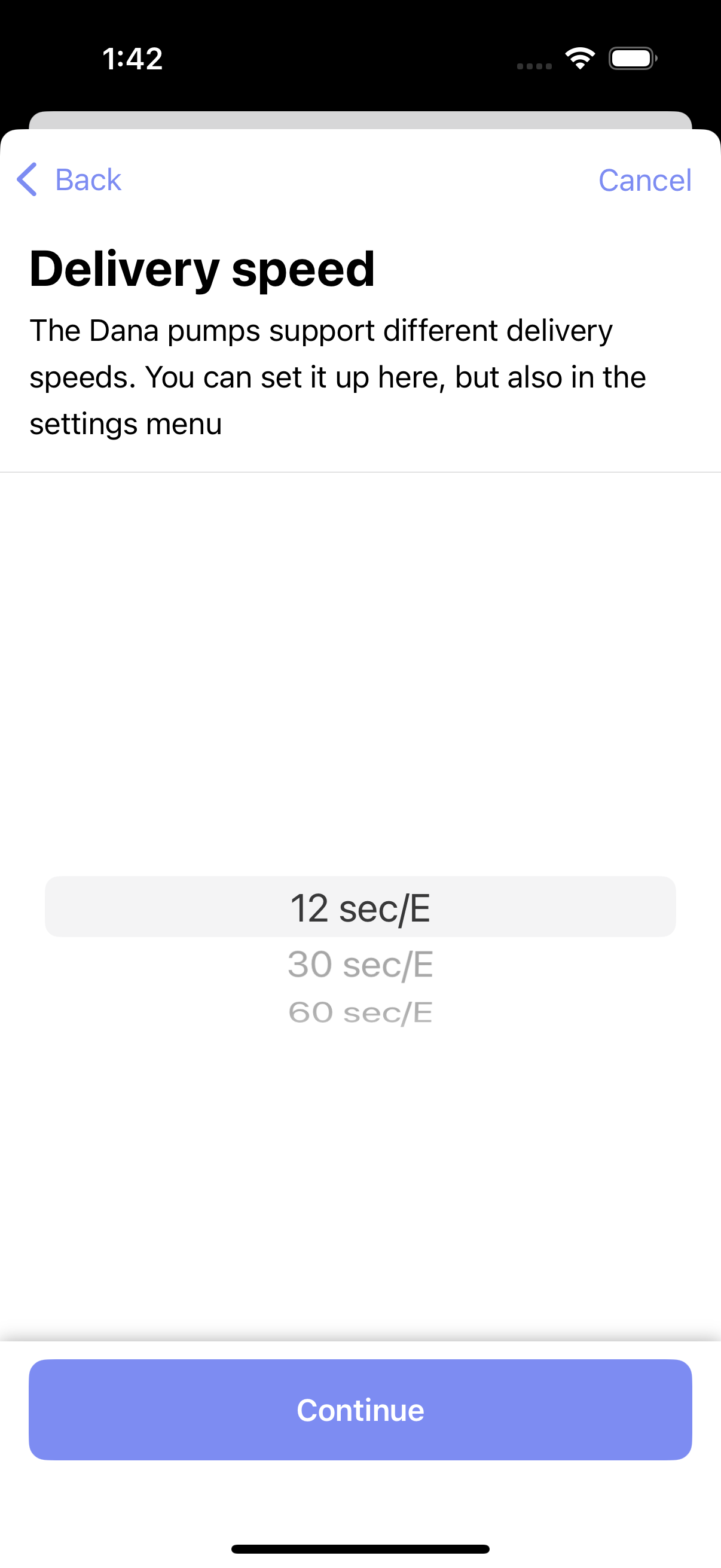
Step 6 Choose your insulin delivery speed and tap "Continue"
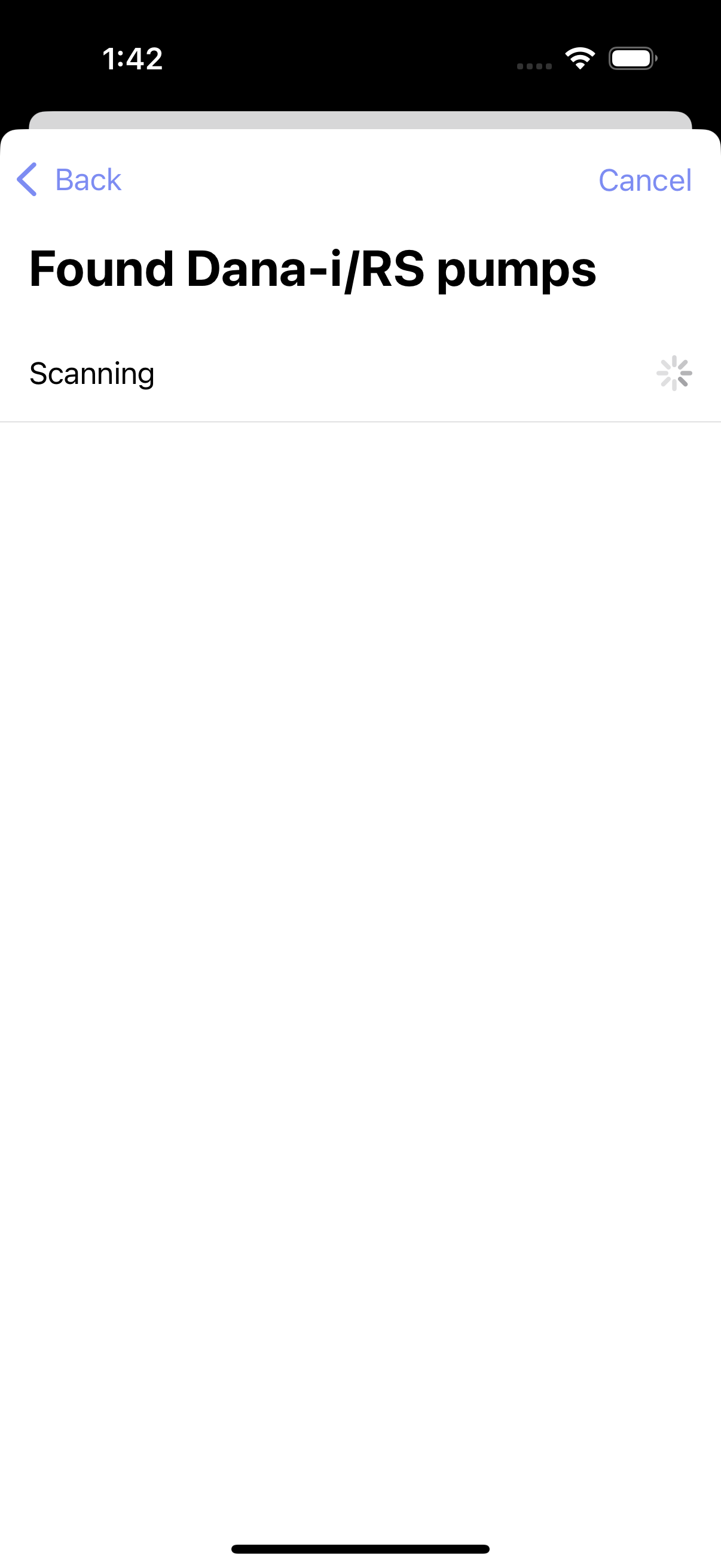
Step 7 Select your pump from the list of found pumps
Step 8 Continue to Connect CGM OR return to New User Setup
Medtrum Nano
Setup Instructions Coming Soon
Medtronic
Step 3 Choose your insulin type and tap "Continue"
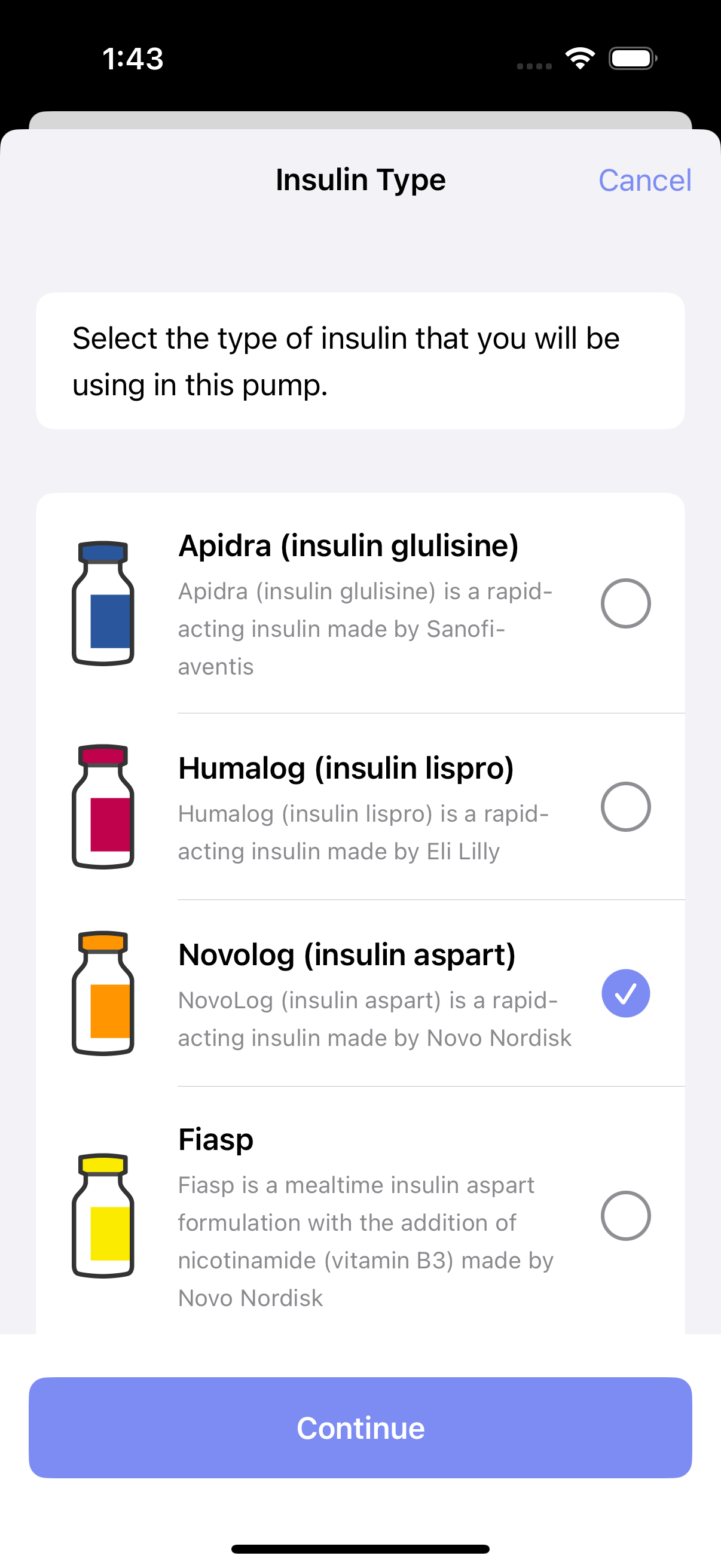
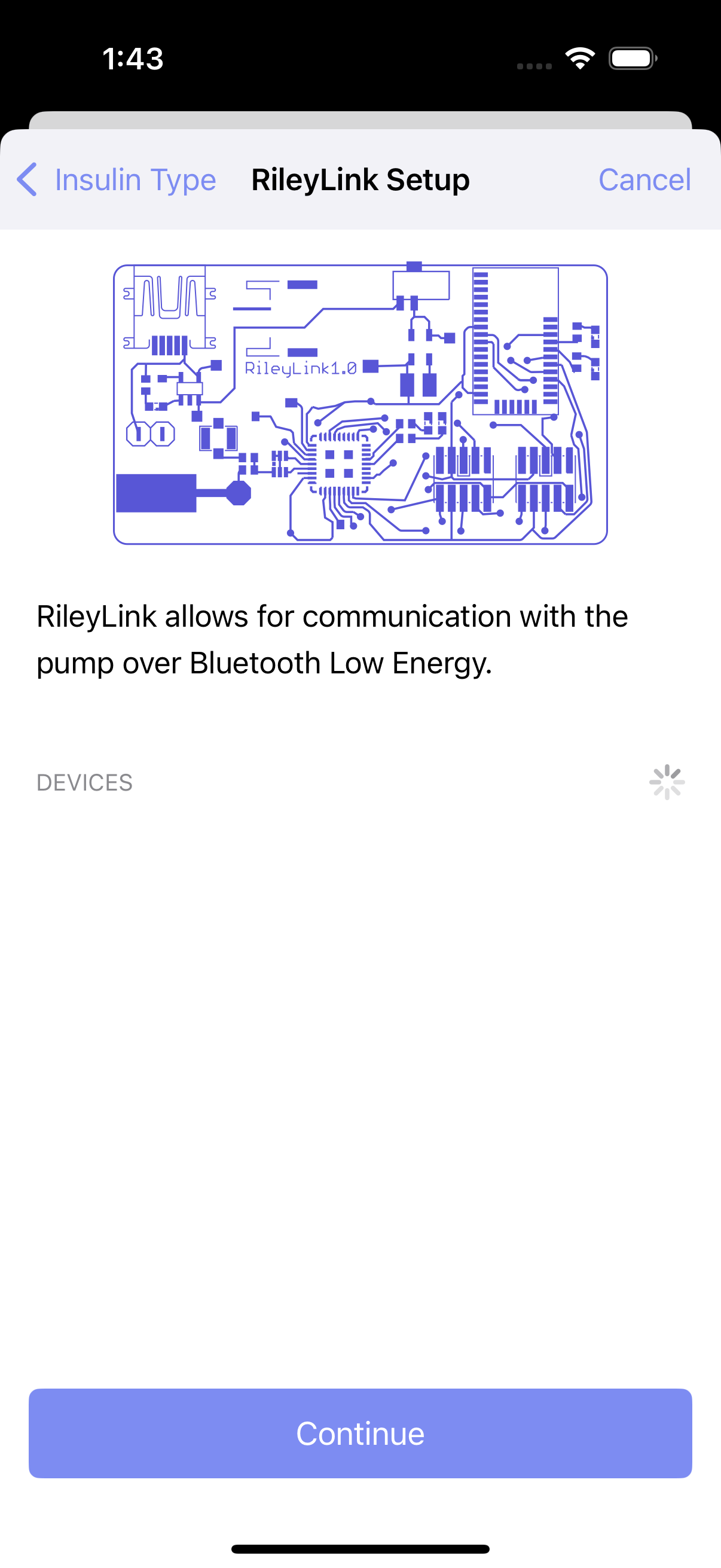
Step 4 Connect your RileyLink, OrangeLink, or EmaLink and tap "Continue"
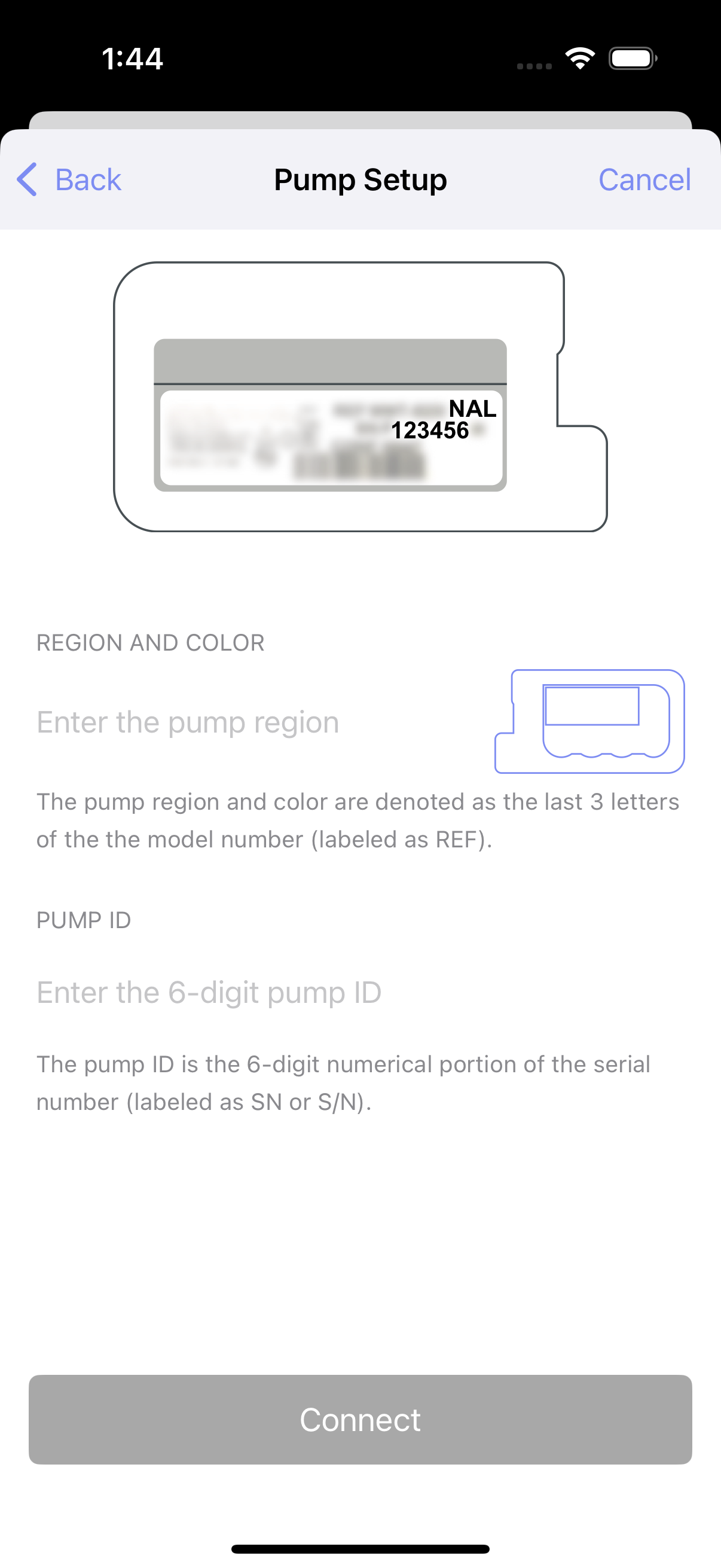
Step 5a Enter your pump region and color
Step 5b Enter your 6-digit pump ID
Then, tap the "Connect" button when it turns blue at the bottom.
Step 6 Continue to Connect CGM OR return to New User Setup
Pump Simulator
Warning
If using a pump simulator, it is important to understand:
- You will only experience the user interface of Trio.
- Using a pump simulator does not indicate how the app will perform, nor will it give accurate guidance or suggestions for insulin dosing.
- Trio may not run consistently in the background when using a pump simulator.
- If you use a pump simulator and switch to a live pump, you must delete all insulin dosing history by uninstalling the Trio app and reinstalling it.
- Only use a pump simulator if you understand the conditions above.
Step 3 Choose from the variety of simulator pump options and tap "Done" in the upper right corner to activate the pump simulator
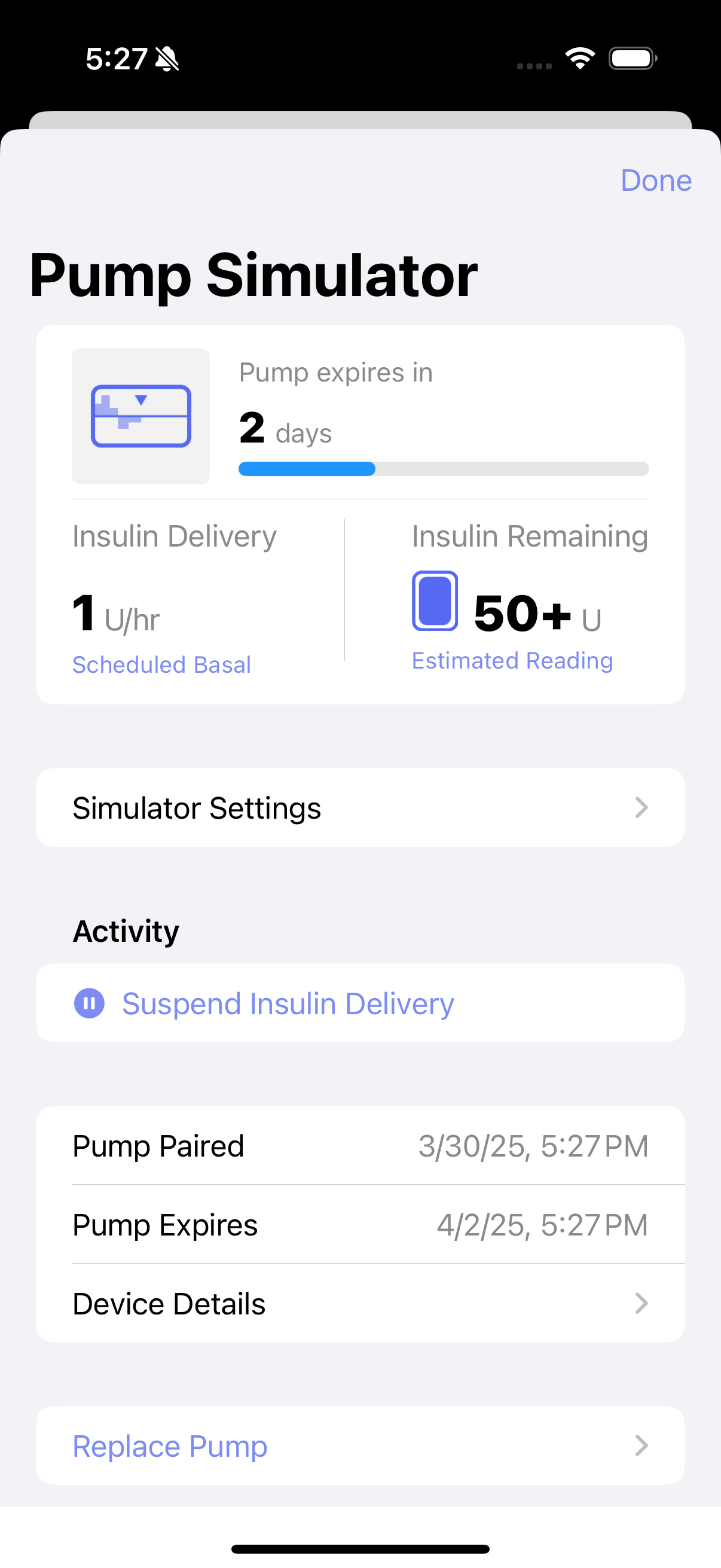
Step 4 Continue to Connect CGM OR return to New User Setup